Get started with AnkiAscend
Install the add-on, enter your license key, and start studying with AI-enhanced cards. No accounts or passwords required.
AnkiWeb add-on code:
2055531363Paste in Anki → Tools → Add-ons → Get Add-ons · or download .ankiaddon file
Setup steps
Follow these steps once. After that, it just works.
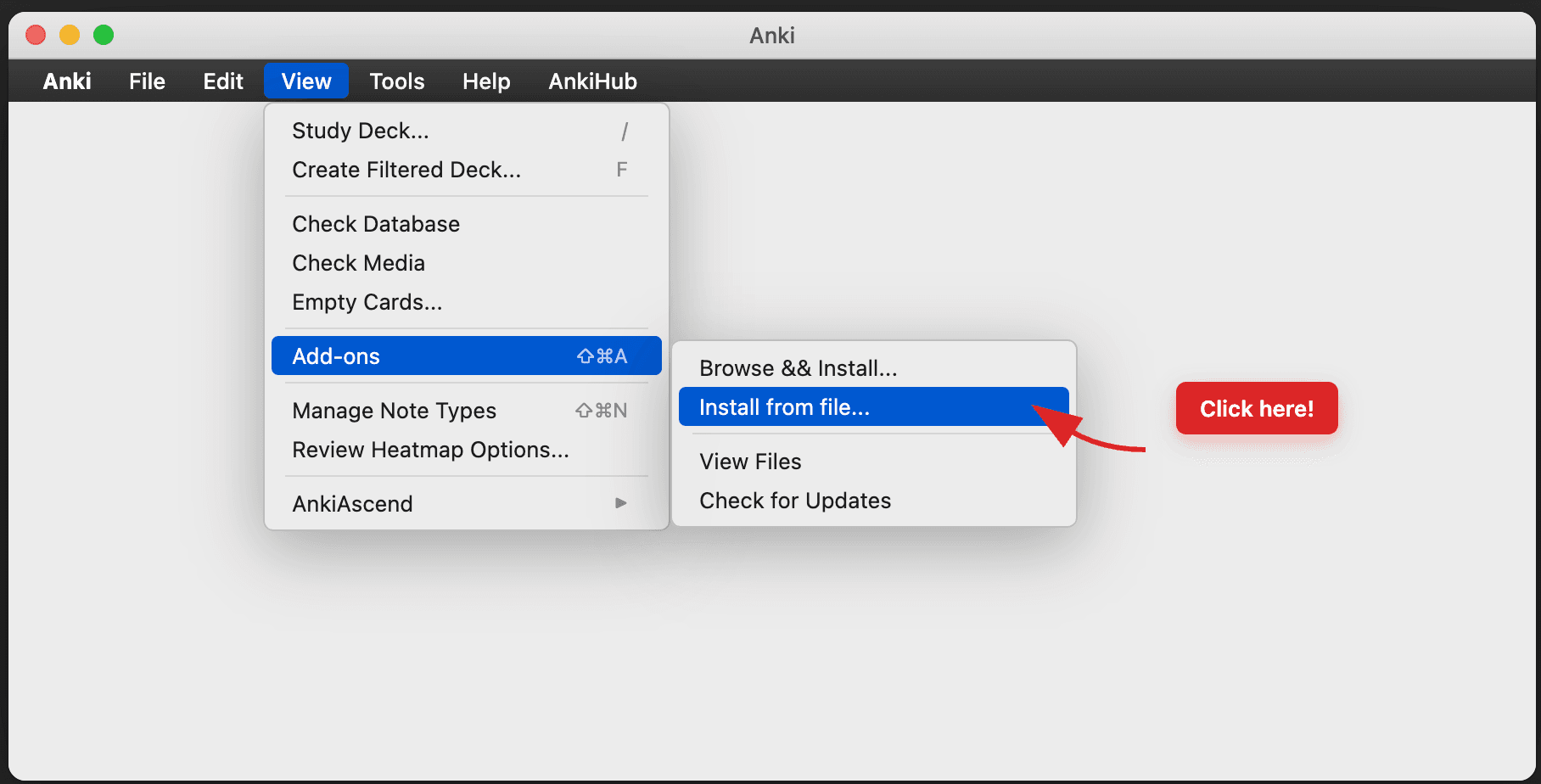
Install the add-on
In Anki, go to Tools → Add-ons → Get Add-ons and paste this code:
2055531363Or download the .ankiaddon file and install manually via Tools → Add-ons → Install from file.
Troubleshooting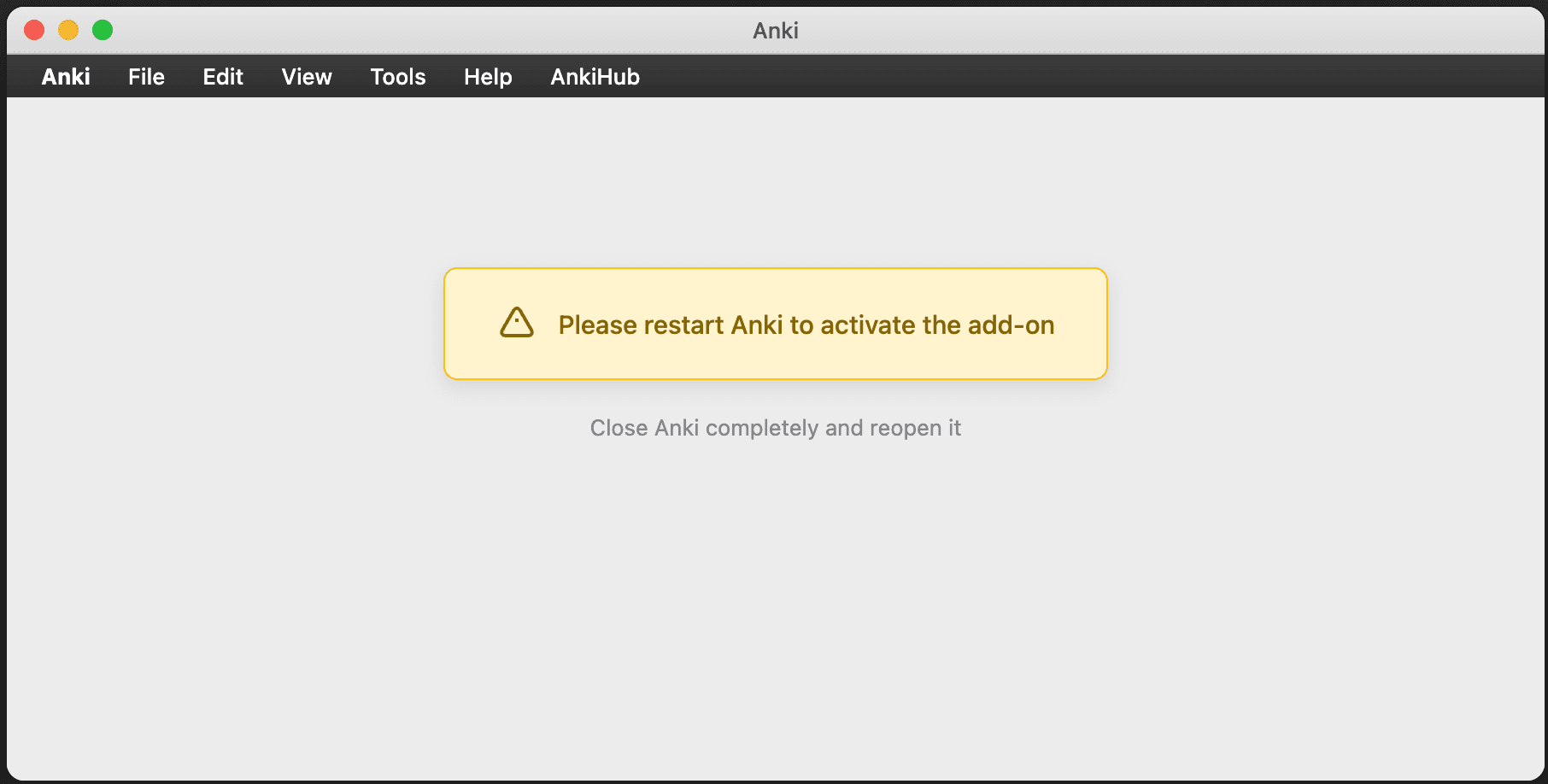
Restart Anki
Fully close Anki (not just minimize) and reopen it. The add-on won't appear until you restart.
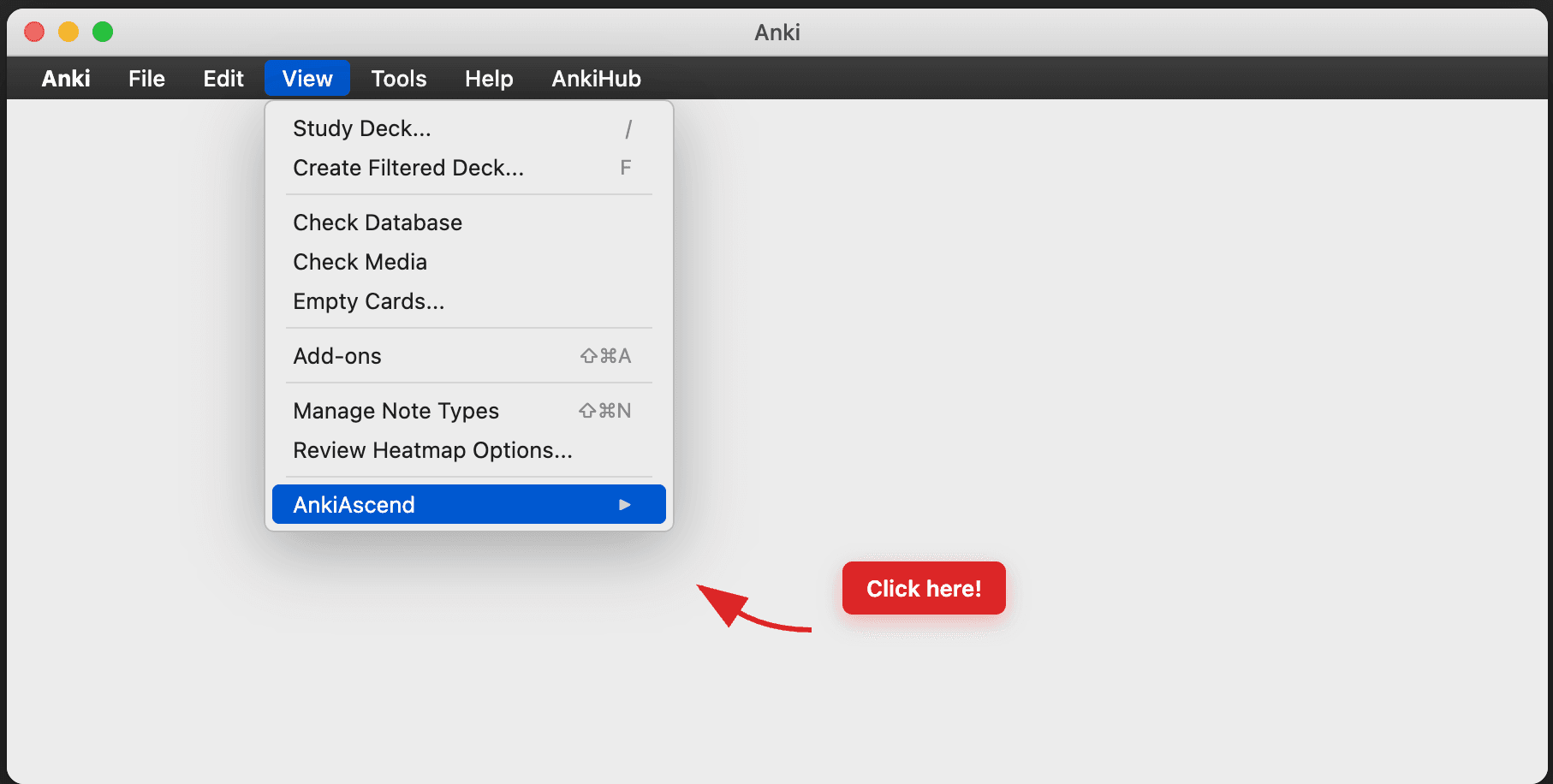
Open AnkiAscend settings
In Anki, go to Tools → AnkiAscend. The settings window will appear.
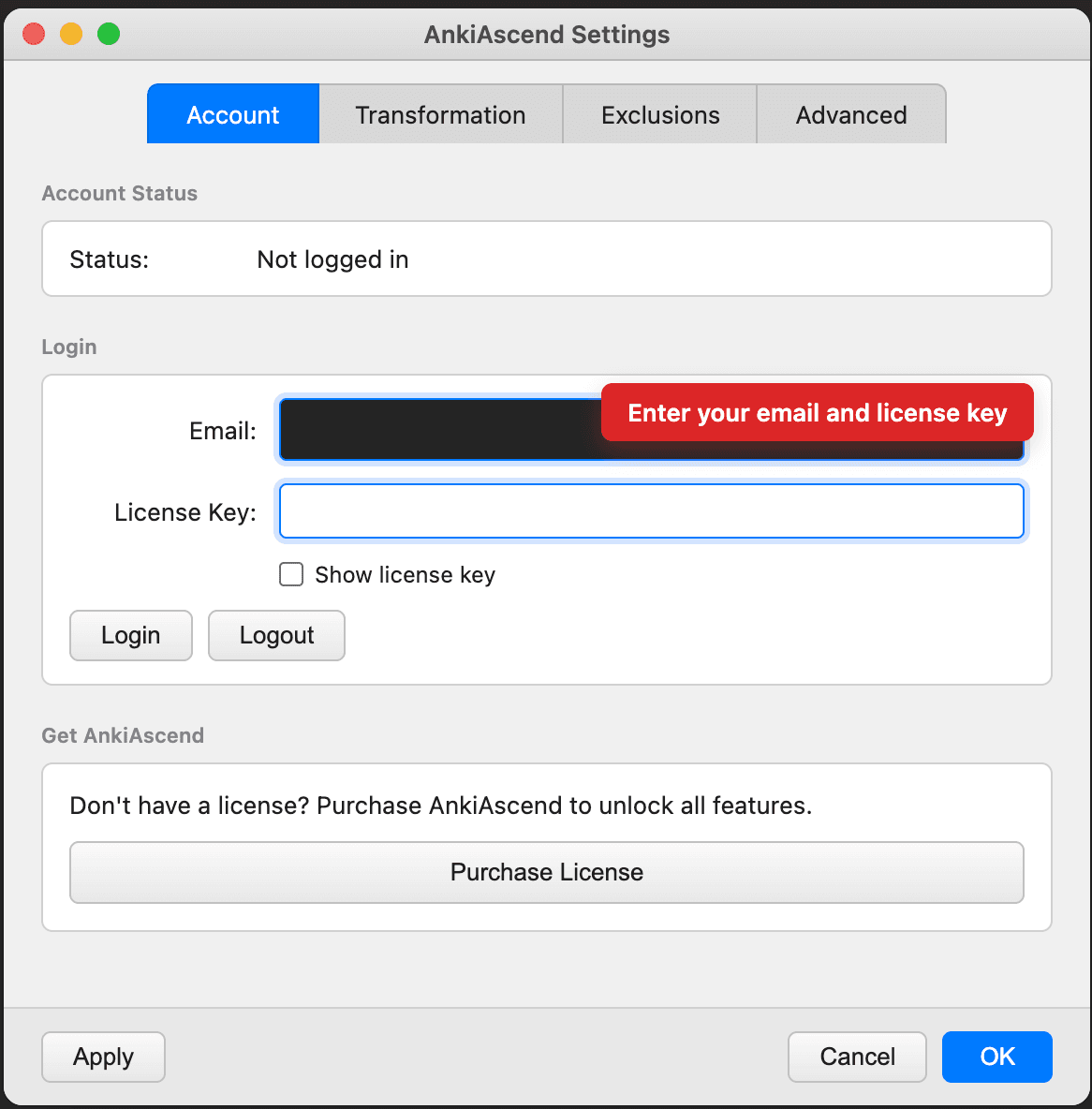
Enter your email and license key
Use the same email you used to sign up. Your license key is shown on the pricing page after you create an account or subscribe.
Tip
Copy and paste your license key exactly. Avoid extra spaces or line breaks. If pasting from email, double-check the key wasn't split across lines.
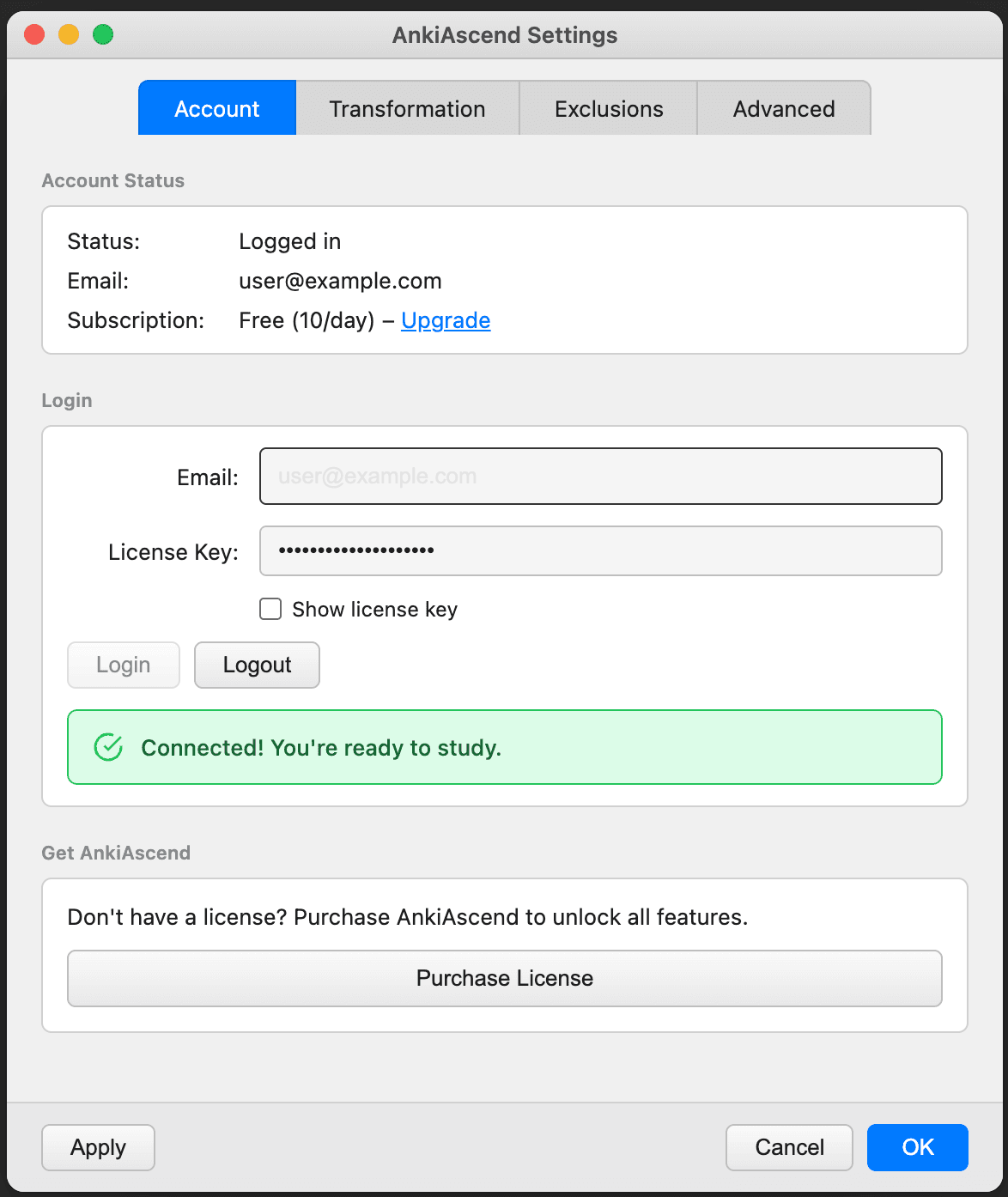
Click "Login"
Click the Login button to activate AnkiAscend. You'll see a confirmation message when connected.
- Free users: 25 card transformations per day included.
- Your original cards are never modified.
- Upgrade anytime from the pricing page using the same account.
Start studying!
Open any deck and start reviewing. Your cards will automatically display in Board Style or MCQ mode based on your settings.
What to expect
First card takes 1-2 seconds
The AI generates unique content for each card. The first card in your session may take a moment.
Subsequent cards are instant
AnkiAscend pre-loads upcoming cards in the background, so most reviews feel immediate.
Toggle modes anytime
Click the mode badge in the bottom-right corner of the card to switch between Original, Board Style, and MCQ modes.
Settings persist
Your preferred mode and settings are saved automatically. No need to reconfigure each session.
System requirements
Anki version
2.1.50 or newer (desktop only)
Operating systems
Windows, macOS, Linux
Internet
Required for AI transformations
Mobile
Not supported (AnkiDroid/AnkiMobile)
Troubleshooting
I don't see AnkiAscend in Tools menu
Make sure you fully restarted Anki after installing. Check Tools → Add-ons to confirm 'AnkiAscend' is listed and enabled.
Login fails or shows an error
Double-check your email and license key. Copy the key directly from the pricing page to avoid typos. Make sure you have an internet connection.
Cards aren't transforming
Check the mode badge in the bottom-right corner. If it says 'Original', click it to switch to Board Style or MCQ. Also verify you haven't hit your daily limit.
How do I know it's working?
When active, you'll see a colored badge (Board Style or MCQ) on your cards during review. If you see the Original badge, transformations are off.
Switching computers
Your license works on one device at a time. Use the device reset form on the pricing page to switch devices (available once every 30 days).
Still stuck? Contact support at philipcroon@gmail.com